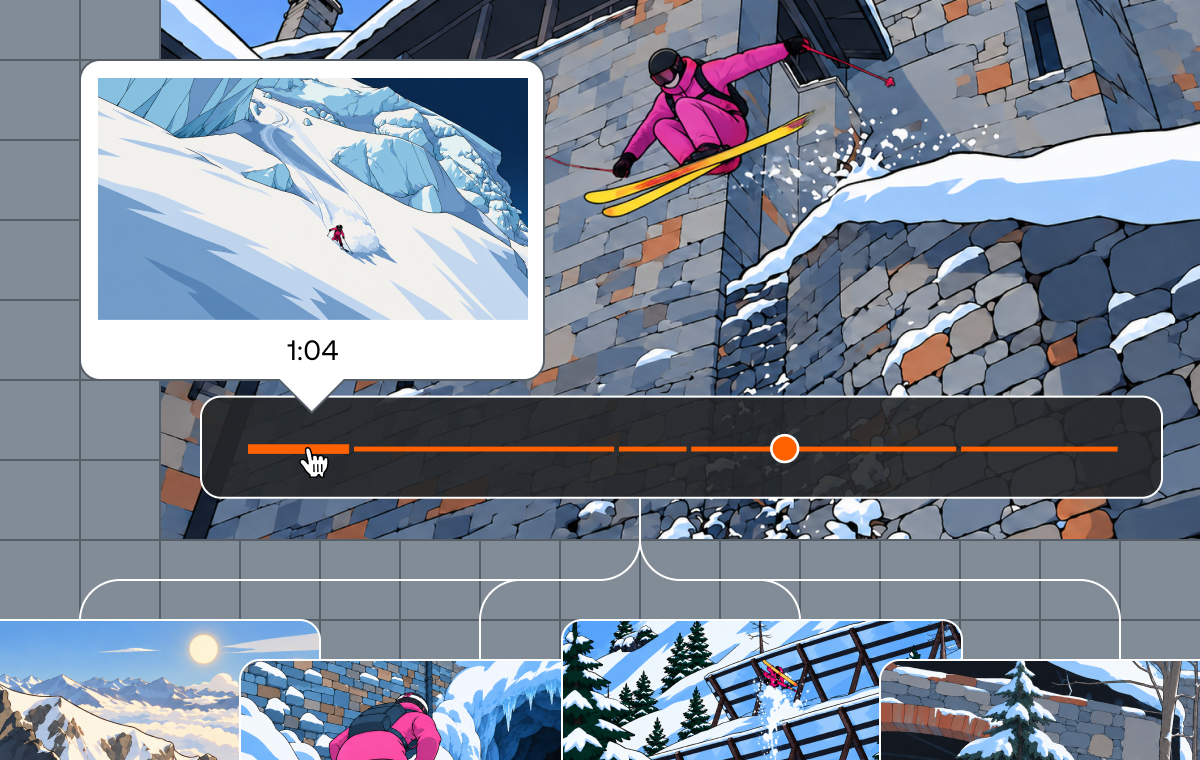
Mux Robots gives you a set of AI workflows that run against your video. Summarize an asset, pull out its key moments, translate its captions, or moderate content, each with a single API call.
Today we're launching the Mux Robots playground: a place in the dashboard to run Robots workflows against your own video and see what they return before you write any code.
Until now, figuring out which workflows work best for your content meant running each one through the API or dashboard jobs, tuning parameters, and reading through JSON output until the results looked right. The playground brings formatted outputs and tuning all in one place. Pick an asset, choose a workflow, set the parameters and output steering, and see the results rendered right alongside the video. Then run it again with different settings and compare the two.
Get playing
In the Mux Dashboard, navigate to playground under Robots in the left-hand nav and pick any asset from your library to run workflows on. Your recent assets are in the dropdown, or you can paste in an asset ID.
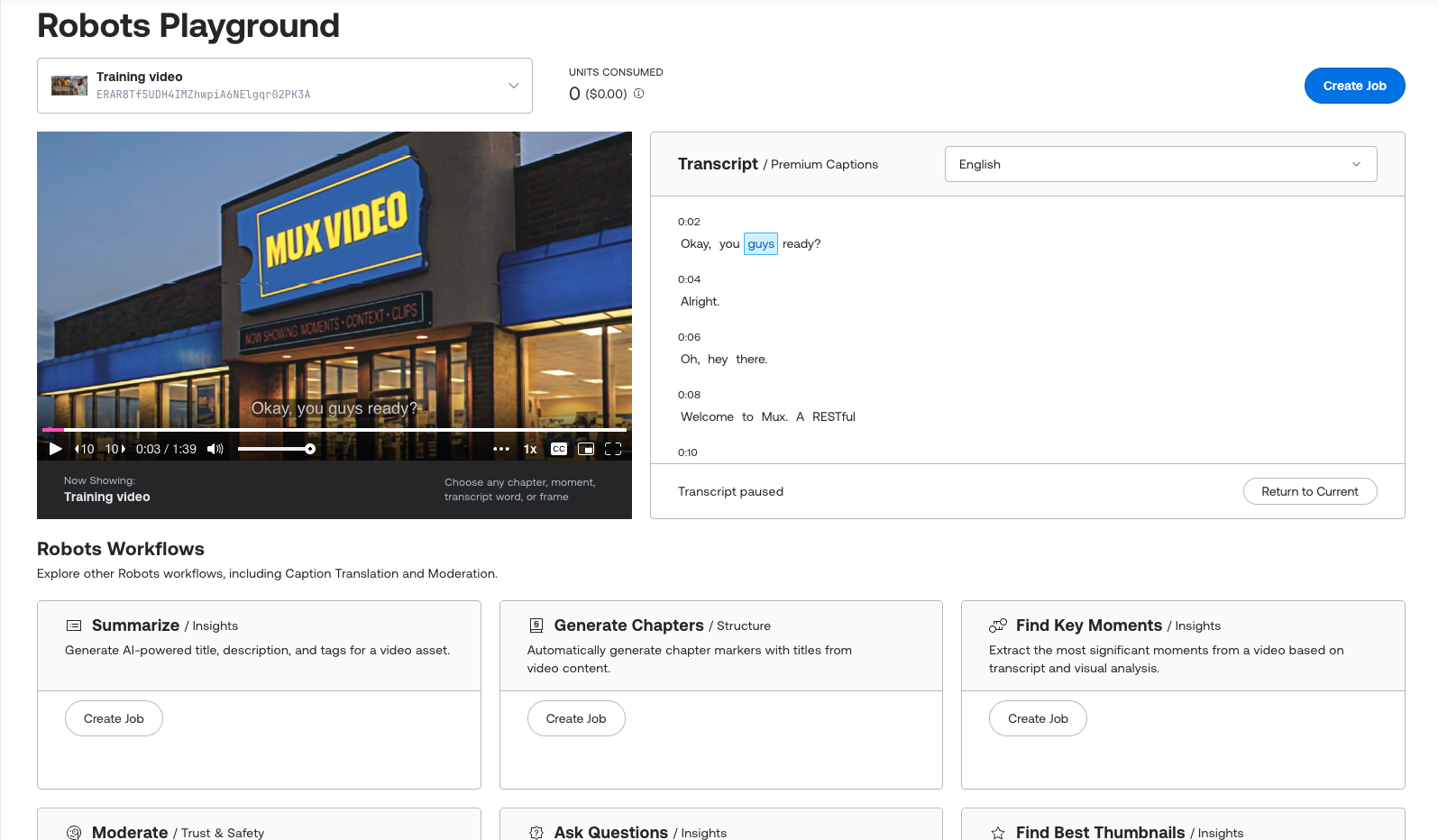
Run a job directly from the workflow cards. It uses the real Robots API, which means it will function the same way as if you were to run a job from an API call or the assets page: outputs will be stored in your jobs list for 30 days and unit usage will apply the same as always. Nothing in the playground is a simulation or demo.
Output goes from raw JSON to rendered context
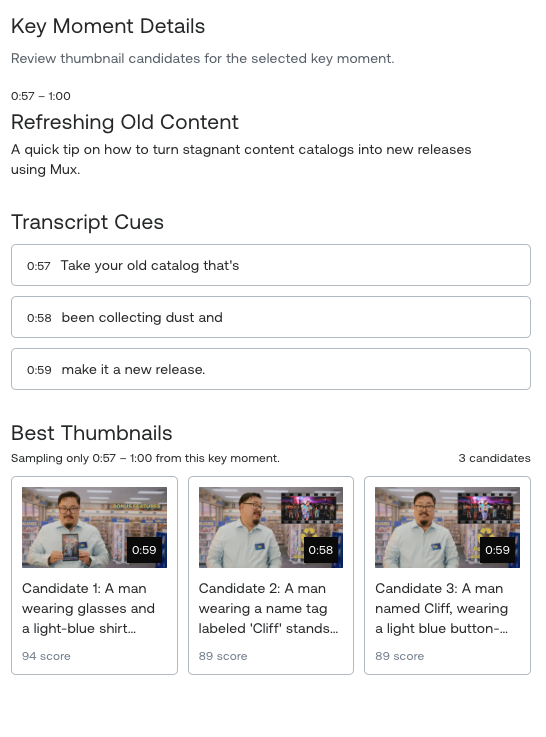
The playground renders each workflow's output as structured context. Chapters show up as a list you can click through. Key Moments show up as cards, with their transcript cues tucked underneath and a thumbnail strip if you ask for one.
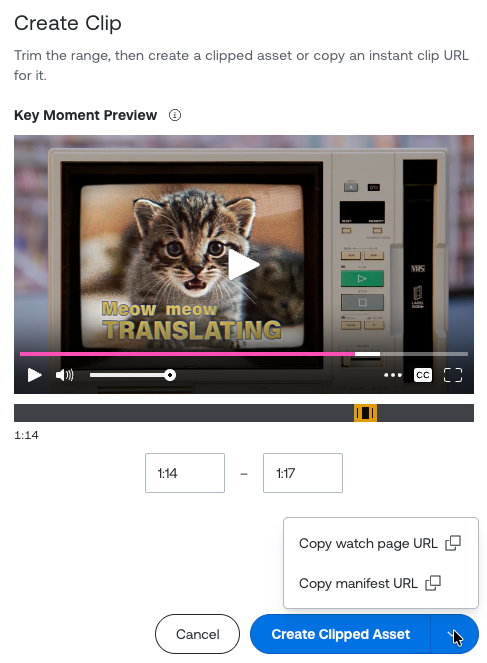
Find a key moment worth keeping? Open the dropdown and select Instant clips to create a clipped asset or a copyable instant clip: trim the range, create the clip, and get a playback ID.
The transcript sits next to the player and follows along as the video plays. If Generate Premium Captions mislabels a speaker, fix the label right there, and the corrected track automatically replaces the old one on the asset.
Comparing runs
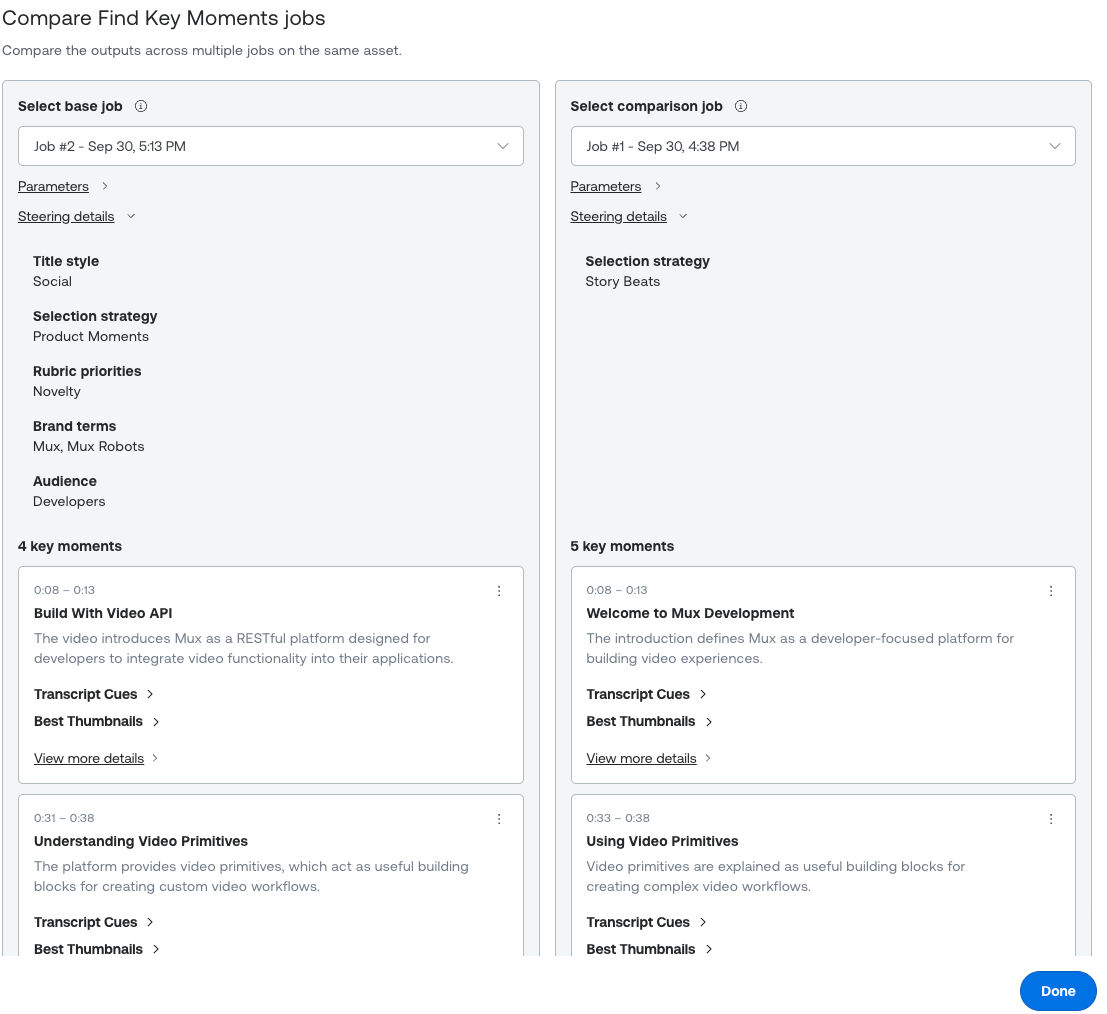
While the default parameters of a workflow often work out of the box, more customized use cases can require some tuning; this tuning is where most of the value (and most of the work) lives. For example, a Find Key Moments job with a selection_strategy of product_moments can give you very different results from one using story_beats.
Run a workflow more than once, then open Compare to see two jobs side by side along with the parameters and output steering that produced them. You can see exactly what your changes did, instead of trying to remember what you typed twenty minutes ago.
Taking it to production
Once a workflow's output looks right, the next question is how to get that same setup into your app. You can always copy the parameters over by hand, but every card also has a Copy agent prompt option. It copies instructions for a coding agent to your clipboard: the endpoint, the exact parameters and steering you landed on, the webhook to handle, and a note on what to do with the output. Paste it into whatever agent you use, and your tuning session becomes the spec.
Get started
The playground is available today in your Mux dashboard under Robots → Playground.
Jobs you create in the Playground are regular Robots jobs, so they use the same units as jobs created through the API. You can find per-workflow unit costs in our guide. The Playground also keeps a running units consumed total for your session at the top of the page, in both units and dollars, so a tuning session doesn't quietly turn into a surprise bill.
Pick your gnarliest asset, throw a workflow at it, and tune it to get the best context for your content.