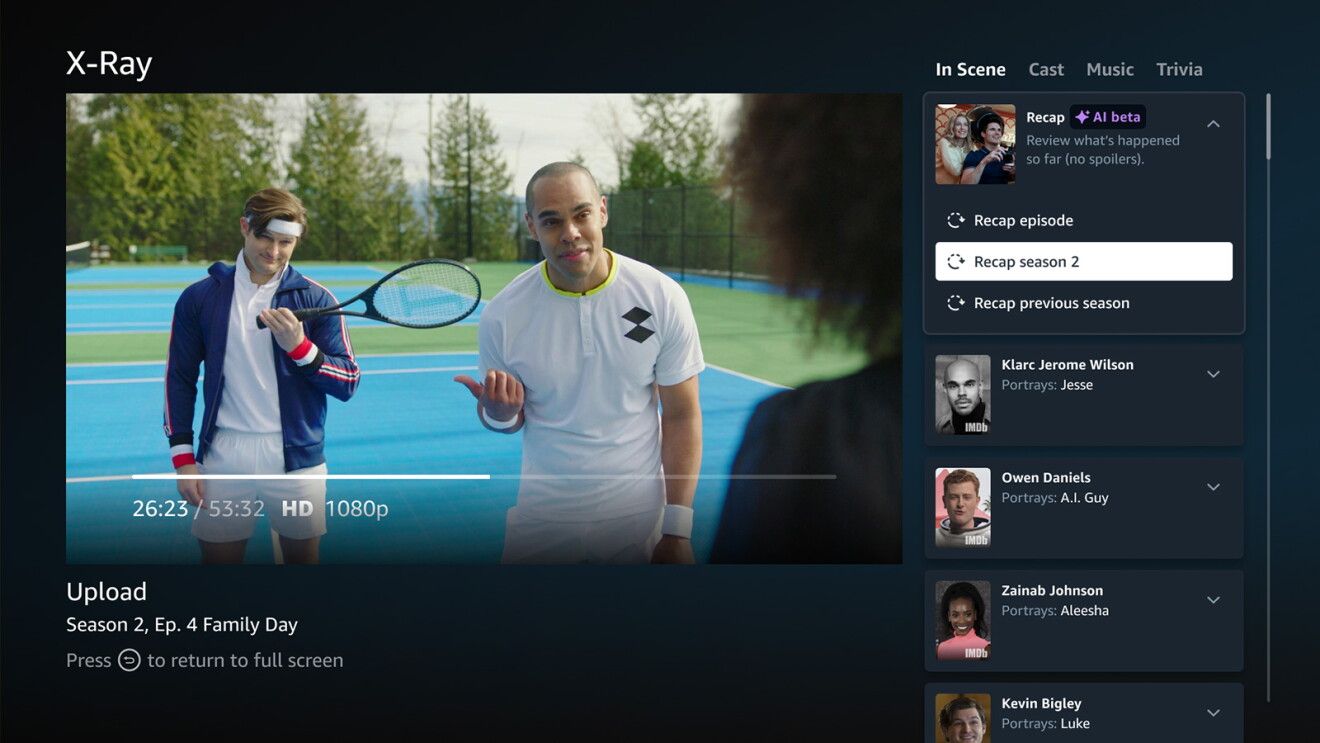
One thing I love about Prime Video is being able to learn more about what I’m watching without leaving the player. This feature inspired me to use Mux Robots to help developers bring this experience to video streaming apps for Apple TV and Google TV devices.
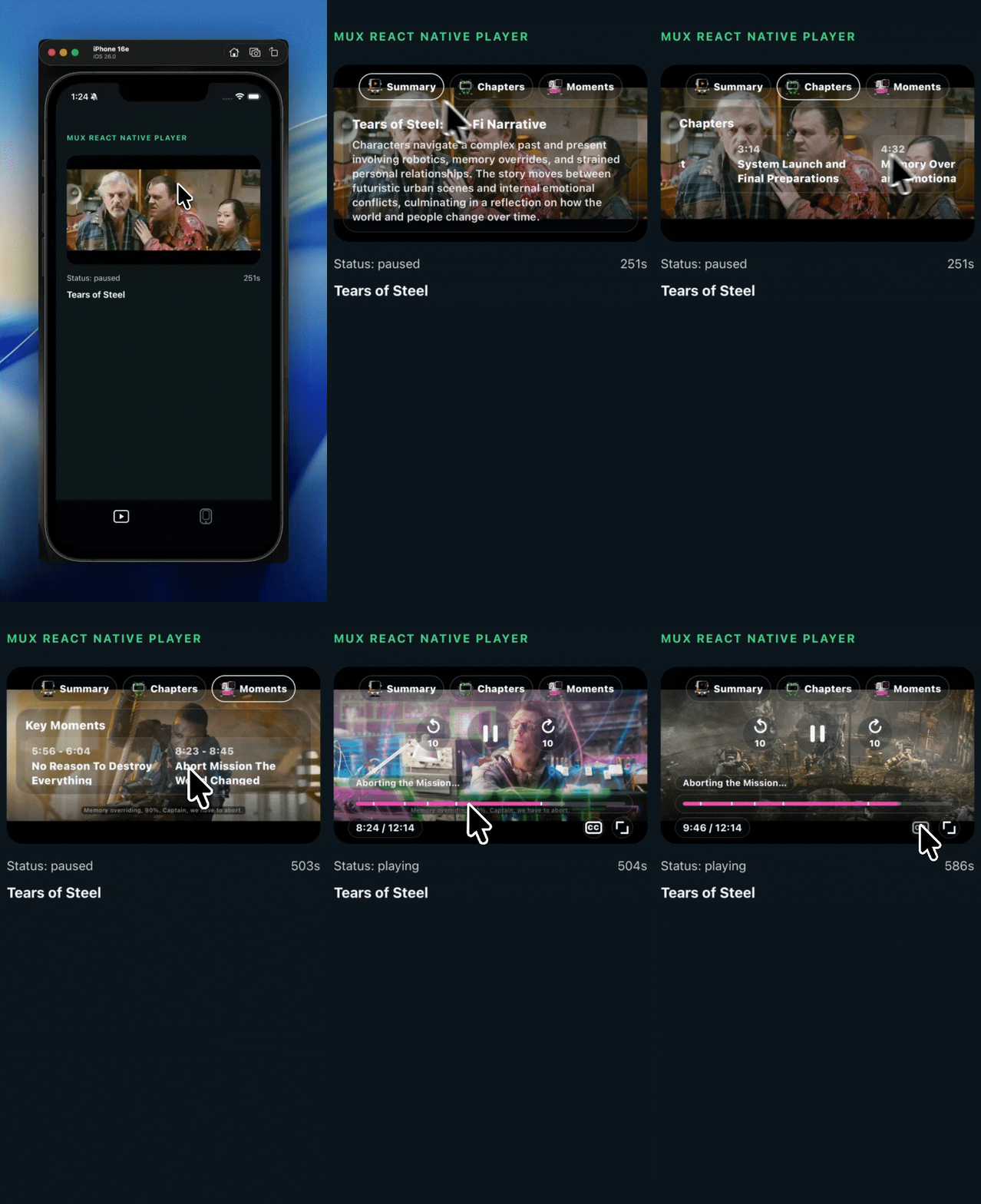
A few months ago, I shipped the Mux React Native Player for iOS and Android, with Mux Robots built into the viewing experience. I wanted to give the player a fresh look and improve the experience across mobile and TV, so I teamed up with Jordan from our Brand Design team to redesign it.
Built for the remote
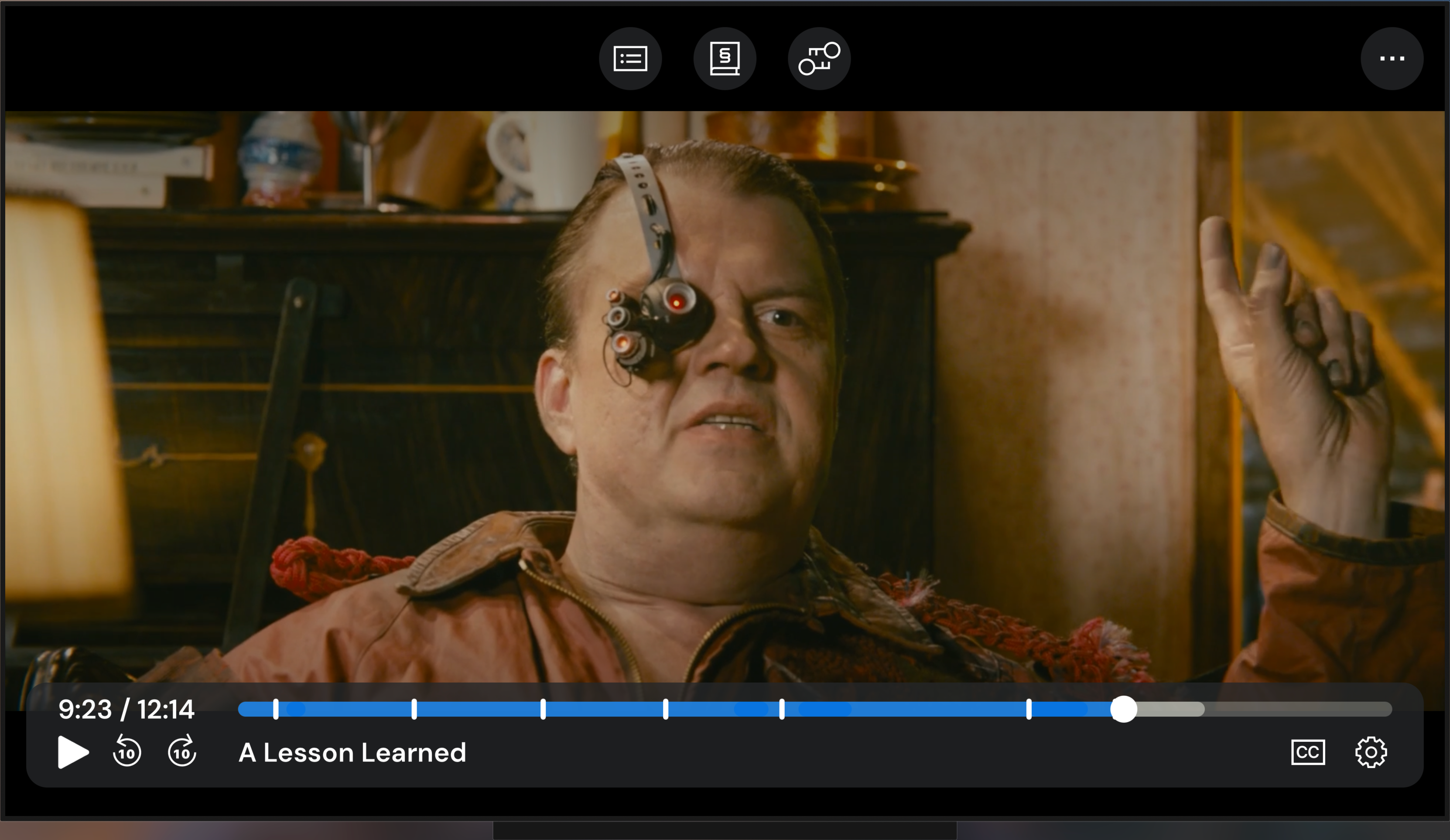
React Native lets me share TypeScript code across mobile and TV, but the way viewers interact with each screen is different. On a phone, you can tap what you want. On a TV, you need to reach everything with a remote and understand which control is selected.
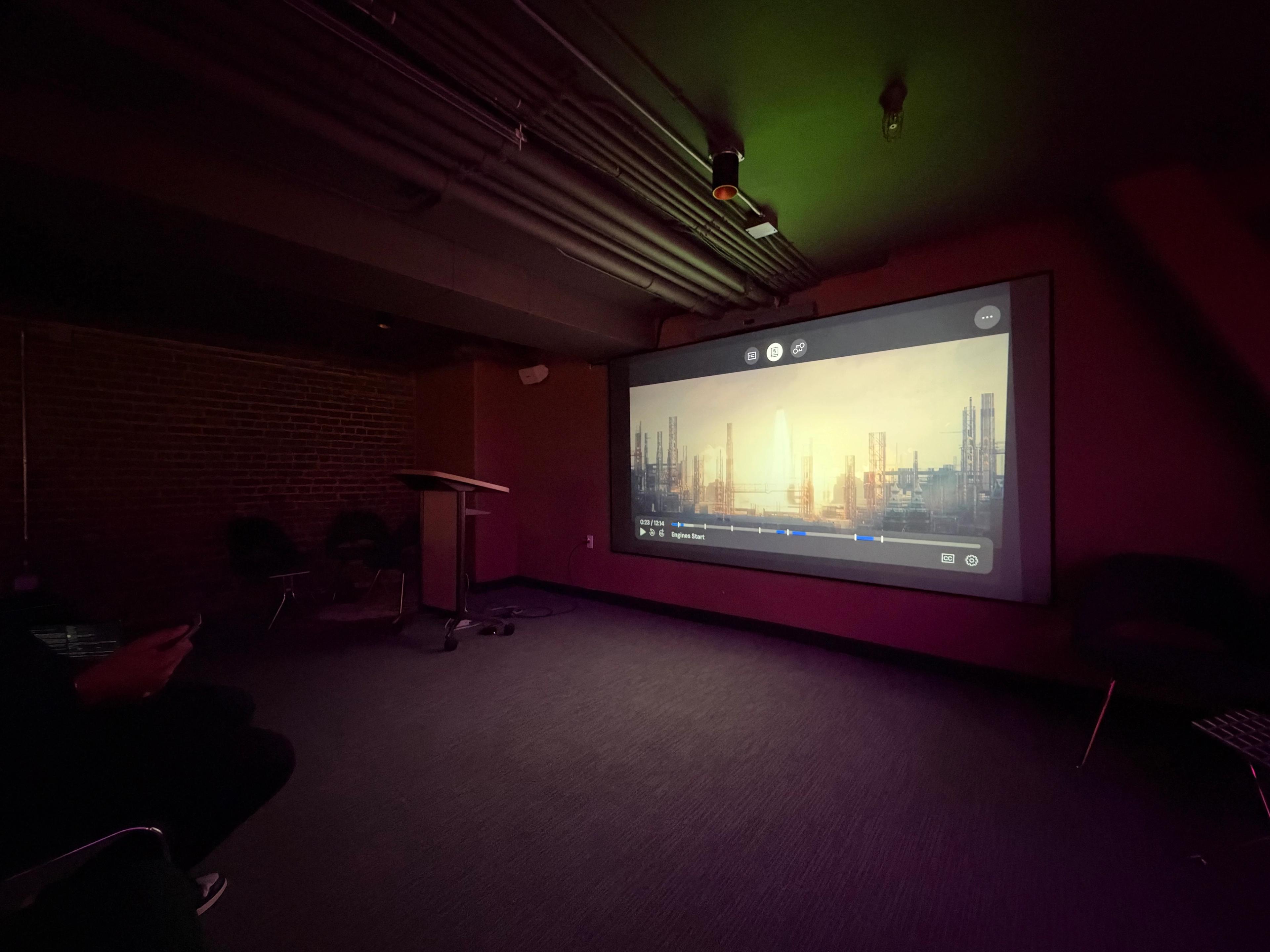
To work through that, Jordan and I tested the player on one of the larger screens in our basement, making changes and seeing how they looked and behaved. As Jordan put it, “being able to make edits in real time was an awesome collaborative opportunity.”
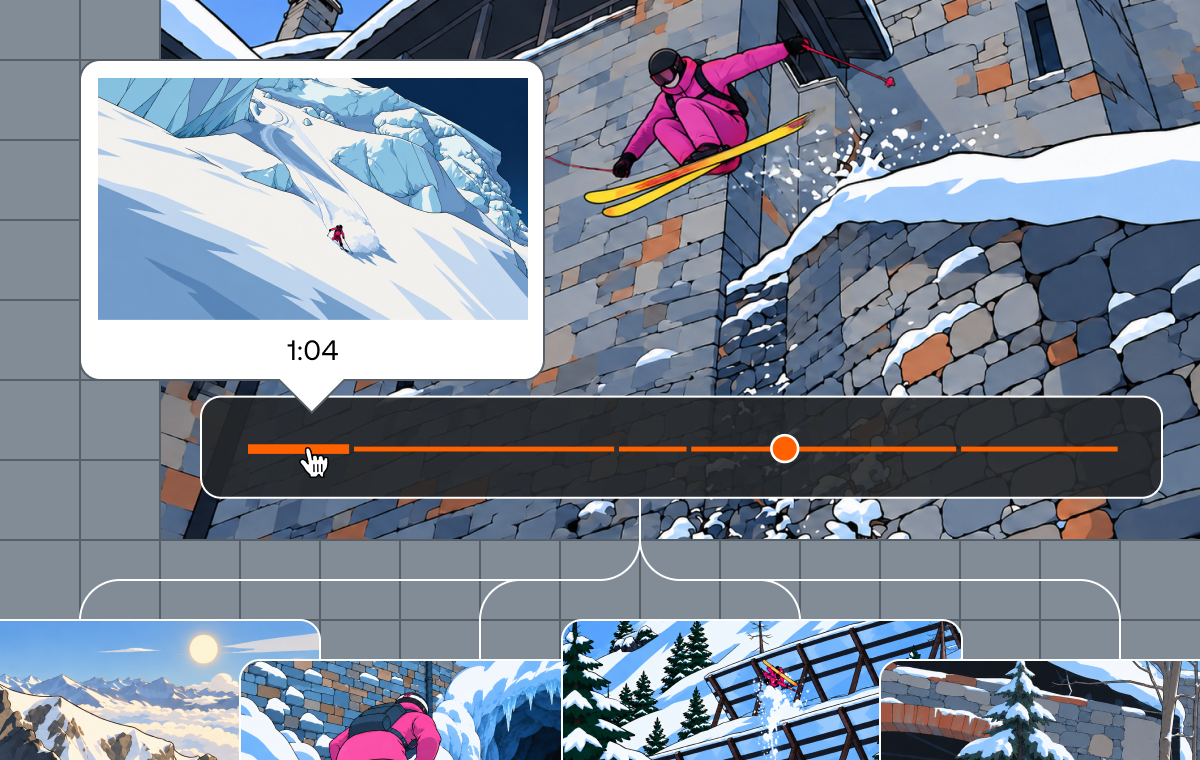
Take chapters, for example. A viewer uses the remote’s directional buttons to navigate to the Chapters button and open a list of sections in the video. Selecting a chapter jumps to that point, closes the list, and returns the selection to the Chapters button. That gives viewers a shortcut to the part they care about without scrubbing back and forth with a remote. Pressing Back/Menu closes the list if they just want to return to the player.
I also added a feature that lets viewers browse the dialogue and select a line to jump to that moment. The player’s “…” menu also lets them choose which Mux Robots features to show, keeping the controls focused on what they use.
Connecting Mux Robots to the player
Mux Robots gives viewers more ways to explore a video without leaving the player. Each workflow serves a different purpose:
- Summaries give viewers a quick overview of what the video covers.
- Chapters break a video into sections so viewers can go straight to the topic they care about.
- Key moments offer shortcuts to highlights or specific moments viewers want to revisit.
- Translated audio and captions let viewers follow along in their preferred language, using the player’s track menu once those tracks are available.
To bring summaries, chapters, and key moments into your app, you can connect the results to the player in two ways:
Prepare results ahead of time
Run the Robots workflows after upload and pass the prepared data through the player’s robots prop. For chapters, set update_asset_chapters to true to write them directly to the Mux asset as a chapters track—you don’t need to store a separate copy in a database or CMS, but you can if you want to. For example, keeping your own copy can help you edit, organize, or reuse the results in your app. Other outputs, such as summaries and key moments, are available through the Robots job; save those results if you need them beyond the 30-day job retention period. The viewer can open panels with prepared data without triggering a new Robots generation request.
Request results when needed
Supply callbacks such as onGenerateChapters to connect the player to your backend when viewers request a feature. Your backend can return existing results or start a new Robots job using the video’s asset ID. If it starts a new job, handle completion through a webhook or polling before returning the prepared results to the player.
You control both what Mux Robots generates and what the player displays. On your backend, workflow parameters can steer chapter granularity or select translation languages. In the player, use the robots prop with controls="custom" to choose which features to offer—for example, chapters without a summary button.
Try it in your app
To try the player in a React Native/Expo app, install the npm package, add the config plugin, and build a native development client using the getting started guide.
NOTE:
Expo Go cannot load the native player. For Apple TV or Google TV, follow the separate TV example setup, which uses react-native-tvos.
Once setup is complete, here’s a minimal example using chapters. Replace the playback ID and sample chapters with your video’s playback ID and saved Robots results:
import {
  MuxVideoView,
  useMuxVideoPlayer,
} from '@mux/mux-react-native-player';

export default function PlayerScreen() {
  const player = useMuxVideoPlayer({
    playbackId: 'YOUR_MUX_PLAYBACK_ID',
  });

  return (
    <MuxVideoView
      player={player}
      controls="custom"
      robots={{
        chapters: [
          { startTime: 0, title: 'Introduction' },
          { startTime: 60, title: 'Demo' },
        ],
      }}
      style={{ width: '100%', aspectRatio: 16 / 9 }}
    />
  );
}
These chapters are supplied directly, so opening the panel makes no Robots API request. To generate chapters for your own video, the asset must have a caption track that’s ready. Generate the results on your backend and map each start_time value from the API to the player’s startTime field.
What I liked about Prime Video was being able to learn more about a video without leaving the player. With the Mux React Native Player, developers can bring that kind of experience to their own mobile and TV apps: let viewers read a summary, jump to a chapter, or find a line in the transcript. You choose which features to offer and connect them to your videos, giving your viewers more ways to explore what they’re watching.
There’s more React Native player work ahead, too. The Video.js team is working on React Native support, and while that work continues, the Mux React Native Player gives developers a way to build and try these Robots experiences on mobile and TV today.
Explore the repo, or give it to your coding agent and see what it can build with the Mux React Native Player.