Run Robots workflows automatically with Directives
Directives run multiple Mux Robots workflows on an asset in the correct order. Use them when you want workflows to start automatically, with no glue code or webhook listeners.
Directives are the orchestration layer for Mux Robots. A single Robots job runs one workflow on one asset. A Directive runs several workflows in the right order, and can trigger them automatically the moment an asset is ready.
Reach for a Directive when you want to:
- Run a few Robots workflows on the same asset (say, generate chapters and a summary and translate the captions).
- Guarantee the prerequisites exist before a workflow runs (auto-generate captions before chapter detection, for example).
- Trigger everything automatically when an asset is created, with no glue code, no webhook listeners, and no manual dispatch.
You could wire this up yourself: subscribe to the Mux Video and Robots webhooks, dispatch each workflow, encode the ordering between them, and babysit the retries. A Directive trades all of that for a single declaration. You say what you want once, attach it to your assets, and Mux handles the rest.
See the Directives API referenceAPI for the full endpoint specification. See Mux Robots pricing for unit costs. Directives themselves are free; you pay only for the workflow runs they trigger.
What you can do
A Directive can run any Robots workflow, and each one takes the same parameters you'd set for a one-off Robots job. For the full list of workflows, see What you can do in the Robots guide.
How it works
A Directive has two parts:
- Workflows: what to run.
- Resources: what those workflows depend on.
You define both once, when you create the Directive. Every run after that uses the same configuration, whether you trigger it by hand or it fires automatically. When a run starts, the engine checks that each workflow has the resources it needs, resolves anything that's missing according to the resource's source policy, and then runs the workflows in the correct order.
A Directive's configuration is locked in once you create it. You can delete a Directive, but to change what it runs, duplicate an existing Directive or create a new one and re-attach your assets. Deleting a Directive doesn't cancel runs already in progress; it just prevents new ones from starting.
Create a Directive
You can create a Directive from the Mux Dashboard or via the API.
From the Dashboard
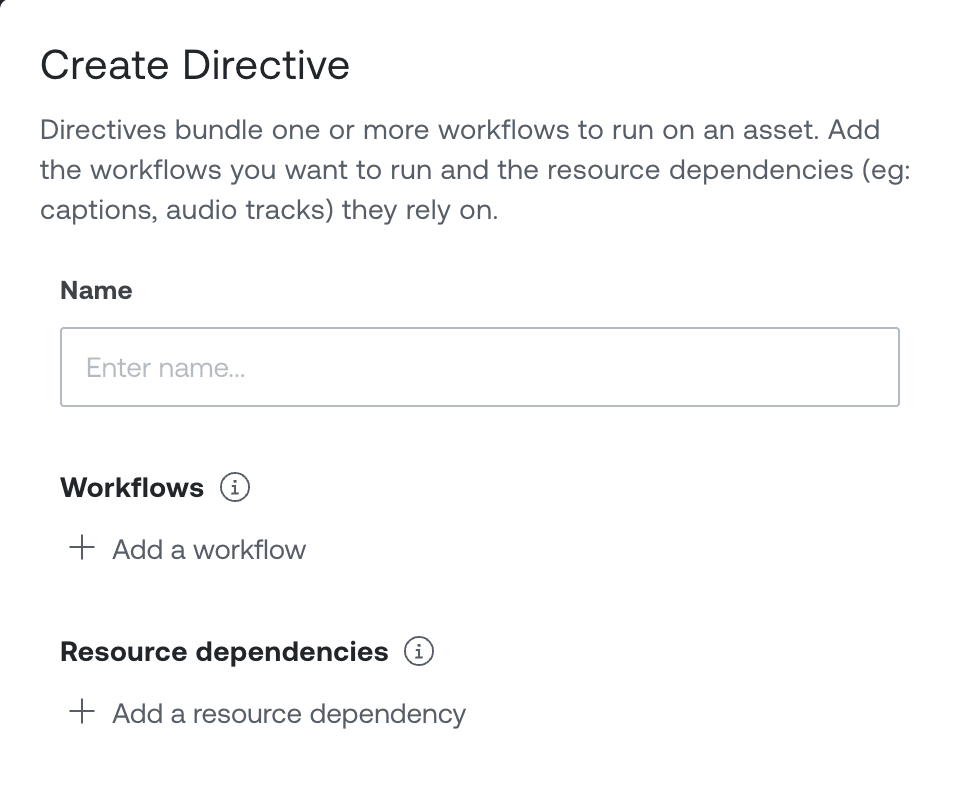
In the Directives section, click Create Directive. You can start from scratch, or pick one of the prebuilt templates for common setups (like generating captions and then translating them) and customize it from there. Either way, give it a name, pick the workflows you want to run, set each workflow's parameters, and declare any resource dependencies.

When you add a workflow that needs a resource you haven't declared yet, the editor adds that resource for you and picks a sensible source policy. Change it in the resource's inspector if you want different behavior.
From the API
POST /robots/v0/directives with a Directive configuration:
curl https://api.mux.com/robots/v0/directives \
  -H "Content-Type: application/json" \
  -X POST \
  -d '{
    "name": "Generate captions, then translate",
    "subject": { "type": "video.asset" },
    "resources": [
      {
        "reference_id": "captions_en",
        "type": "video.asset.track",
        "kind": "caption",
        "language": "en",
        "source": { "via": "workflow", "binding": "premium_captions" }
      }
    ],
    "workflows": [
      {
        "reference_id": "premium_captions",
        "workflow": "generate-premium-captions",
        "params": { "language_code": "en" }
      },
      {
        "reference_id": "translate_es",
        "workflow": "translate-captions",
        "inputs": ["captions_en"],
        "params": { "to_language_code": "es" }
      }
    ]
  }' \
  -u ${MUX_TOKEN_ID}:${MUX_TOKEN_SECRET}
The response is a 201 with the new Directive, including its id:
{
  "data": {
    "id": "drv_abc123",
    "name": "Generate captions, then translate",
    "subject": { "type": "video.asset" },
    "resources": [ /* … */ ],
    "workflows": [ /* … */ ],
    "created_at": 1746403200,
    "updated_at": 1746403200
  }
}
Validation errors return a 422 with every problem collected into one message, so you can fix the config in a single pass.
Configure resources and dependencies
Some workflows need a specific resource on the asset before they can run. Generate chapters, for instance, reads from a caption text track. No captions, no chapter markers.
A resource declaration has three parts: a reference_id (a stable handle you choose), a type, and a source (how the resource comes to exist on the asset at run start).
Resource types
type | Describes | Selector fields |
|---|---|---|
video.asset.track | A caption (subtitles) or audio track on the asset. | kind: "caption" or "audio" (required). language: BCP 47 code (optional; when omitted, any language of that kind matches). |
video.asset.shots | The asset's shot-detection output. | None. Singleton per asset. |
Source policies
The source field is a discriminated union on via that tells the engine how to satisfy the resource when it isn't already ready on the asset. source defaults to { "via": "external" } when omitted.
source | What it does |
|---|---|
{ "via": "external" } | Wait for the resource to appear and become ready on the asset. Use when you upload the resource out-of-band (e.g. captions uploaded directly to the asset) and want dependent workflows to hold until it lands. Fixed 24-hour wait cap. |
{ "via": "required" } | The resource must already be ready when the run starts. If it's absent, the dependent workflows fail immediately. Use this when "no resource, no run" is the behavior you want. |
{ "via": "workflow", "binding": "<reference_id>" } | Produced by another workflow binding in this Directive. Dependent workflows wait for that binding to complete and the resource to appear. See Chain workflows together. |
{ "via": "mux_api", "action": "<action>", "params"?: {…} } | The engine calls Mux Video to create the resource on demand, then waits for it. Supported actions: generate_subtitles, create_track, request_shots. |
Engine-initiated (mux_api) actions use the same Mux Video APIs you'd call yourself, so the same rules apply. Generating captions, for instance, needs an audio track on the asset. If the asset can't satisfy the underlying call (a silent video, say), the dependent workflows fail and the reason is reported in the run output.
Workflow inputs
Each workflow binding can declare inputs: a flat array of resource reference_ids the workflow depends on. Every referenced resource must be declared in the same Directive.
{
  "reference_id": "chapters",
  "workflow": "generate-chapters",
  "inputs": ["captions_en"]
}
A few workflows also accept recommended inputs (captions for Summarize, for example). Recommended inputs sharpen the output but don't block the run if they're missing. The Dashboard surfaces them so you can opt in.
Chain workflows together
To chain workflows, declare a resource whose source is another binding in the same Directive. In the earlier example, translate_es waits for premium_captions because it lists captions_en in its inputs, and captions_en is source: { "via": "workflow", "binding": "premium_captions" }.
The engine dispatches premium_captions first, waits for it to complete and for the captions to become ready on the asset (Mux tracks land asynchronously), then dispatches translate_es. If premium_captions errors, translate_es fast-fails with a diagnostic reason instead of waiting out the 24-hour cap.
Replace existing tracks
Set replace_existing_tracks in a binding's params like any other parameter. For example, replace_generated on generate-premium-captions replaces Mux Video's auto-generated captions as each asset is processed. A conflict found before dispatch shows as a failed binding with the reason. One found later errors the dispatched job. See Managing existing tracks.
{
  "reference_id": "premium_captions",
  "workflow": "generate-premium-captions",
  "params": { "replace_existing_tracks": "replace_generated" }
}
A binding that replaces tracks can delete a track another binding reads. Saving the Directive returns a 422 when that can happen, unless the reader's resource has the deleting binding as its source, so the reader waits for the new track. In the example at the top of this guide, translate_es reads captions_en, which is sourced from premium_captions, so it's safe.
Edit captions replaces its input track by default. If another binding reads the same caption resource, give that binding its own resource with source: { "via": "workflow", "binding": "<edit captions binding>" } so it reads the edited track, or set the edit binding's replace_existing_tracks to fail.
Run a Directive
There are three ways to trigger a run.
By hand, from the Dashboard
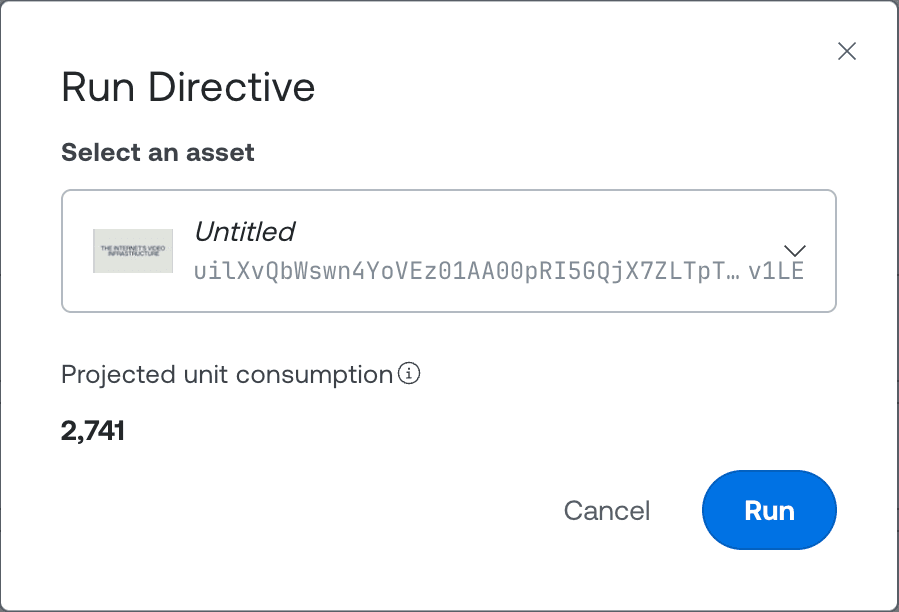
Open a saved Directive and click Run on asset. Pick an asset and the run starts immediately. This is the quickest way to do a one-off run, or to test a Directive before attaching it to assets automatically.
By hand, from the API
POST /robots/v0/directives/{DIRECTIVE_ID}/runs with the target asset ID:
curl https://api.mux.com/robots/v0/directives/YOUR_DIRECTIVE_ID/runs \
  -H "Content-Type: application/json" \
  -X POST \
  -d '{ "asset_id": "YOUR_ASSET_ID" }' \
  -u ${MUX_TOKEN_ID}:${MUX_TOKEN_SECRET}
The response is a 202 with the new run's run_id:
{
  "data": {
    "run_id": "drvrun_xyz789",
    "subject_id": "YOUR_ASSET_ID",
    "status": "pending"
  }
}
If a run for the same Directive and asset is already in progress, the API returns a 409 Conflict. Only one active run per pair.
Automatically, by attaching to an asset
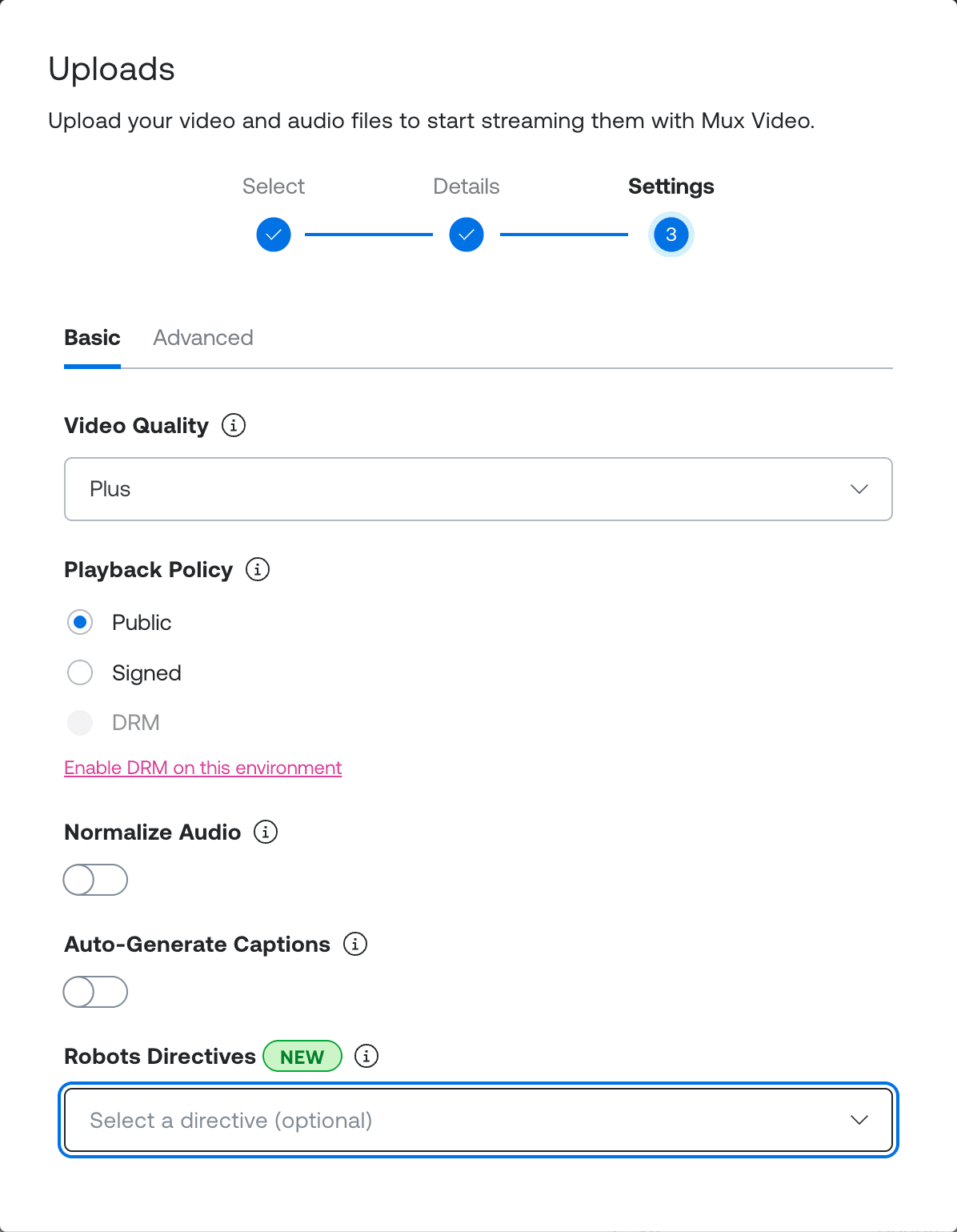
When you create an asset, set the Directives field in the Settings step of the asset creation dialog. Any Directives you attach run automatically as soon as the asset is ready.
You can also attach a Directive through the Mux Video API by including its ID in the directives field:
curl https://api.mux.com/video/v1/assets \
  -H "Content-Type: application/json" \
  -X POST \
  -d '{
    "inputs": [{ "url": "https://example.com/my-video.mp4" }],
    "playback_policies": ["public"],
    "directives": [{ "id": "YOUR_DIRECTIVE_ID" }]
  }' \
  -u ${MUX_TOKEN_ID}:${MUX_TOKEN_SECRET}
Attached Directives run once per asset. Attach the same Directive to the same asset twice and nothing doubles up; the operation is idempotent, so only one run starts. You can attach several different Directives to one asset, though. Each runs on its own, and the same workflow can run more than once if two Directives both include it.
Track a run
Webhooks
Every directive-run lifecycle transition fires a webhook event. Subscribing is the recommended way to react to runs without polling.
| Event type | When it fires |
|---|---|
robots.directive_run.created | A run is triggered (manually or automatically). |
robots.directive_run.completed | Every workflow in the run completed successfully. |
robots.directive_run.partial | Some workflows completed; others errored. |
robots.directive_run.errored | Every workflow errored, or the run could not start. |
The payload nests the run object under the event-name key. For a completed run:
{
  "robots.directive_run.completed": {
    "directive_run": {
      "id": "drvrun_xyz789",
      "directive_id": "drv_abc123",
      "asset_id": "YOUR_ASSET_ID",
      "status": "completed",
      "node_states": [
        {
          "reference_id": "premium_captions",
          "status": "dispatched",
          "workflow_name": "generate-premium-captions",
          "job_id": "rjob_..."
        },
        {
          "reference_id": "translate_es",
          "status": "dispatched",
          "workflow_name": "translate-captions",
          "job_id": "rjob_..."
        }
      ],
      "started_at": 1746403300,
      "completed_at": 1746403420
    }
  },
  "environment_id": "env_...",
  "created_at": 1746403420,
  "internal_id": "evt_..."
}
The individual workflow jobs the Directive dispatched also fire their normal Robots job webhooks (robots.job.<workflow>.completed, etc.), so you can react to either the run or the individual jobs.
Retrieve a run
If webhooks aren't an option, poll the run endpoint:
curl https://api.mux.com/robots/v0/directives/YOUR_DIRECTIVE_ID/runs/YOUR_RUN_ID \
  -u ${MUX_TOKEN_ID}:${MUX_TOKEN_SECRET}
Runs are retained for 30 days after they reach a terminal state. The response includes the current status and a node_states array with one entry per workflow binding, in the order the bindings appear in the Directive's workflows.
Every entry carries a reference_id identifying the binding it describes, plus one of the shapes below, discriminated on its own status:
| Node status | Additional fields |
|---|---|
dispatched | workflow_name, job_id: the Robots job that runs the workflow. Look it up via GET /robots/v0/jobs/{workflow}/{job_id} for its outputs. |
failed | reason: a diagnostic string explaining why the binding didn't dispatch. |
waiting_for_resources | workflow_name: blocked waiting on an external Mux resource. |
waiting_for_source_workflow | workflow_name, source_workflows: blocked on producer bindings in the same Directive. |
The run's own top-level status is one of pending, dispatching, running, waiting, completed, partial, or errored.
On the Dashboard
Each Directive keeps a list of its recent runs (retained for 30 days). Open a run to see the status of each workflow, the order it ran in, and anything that failed.
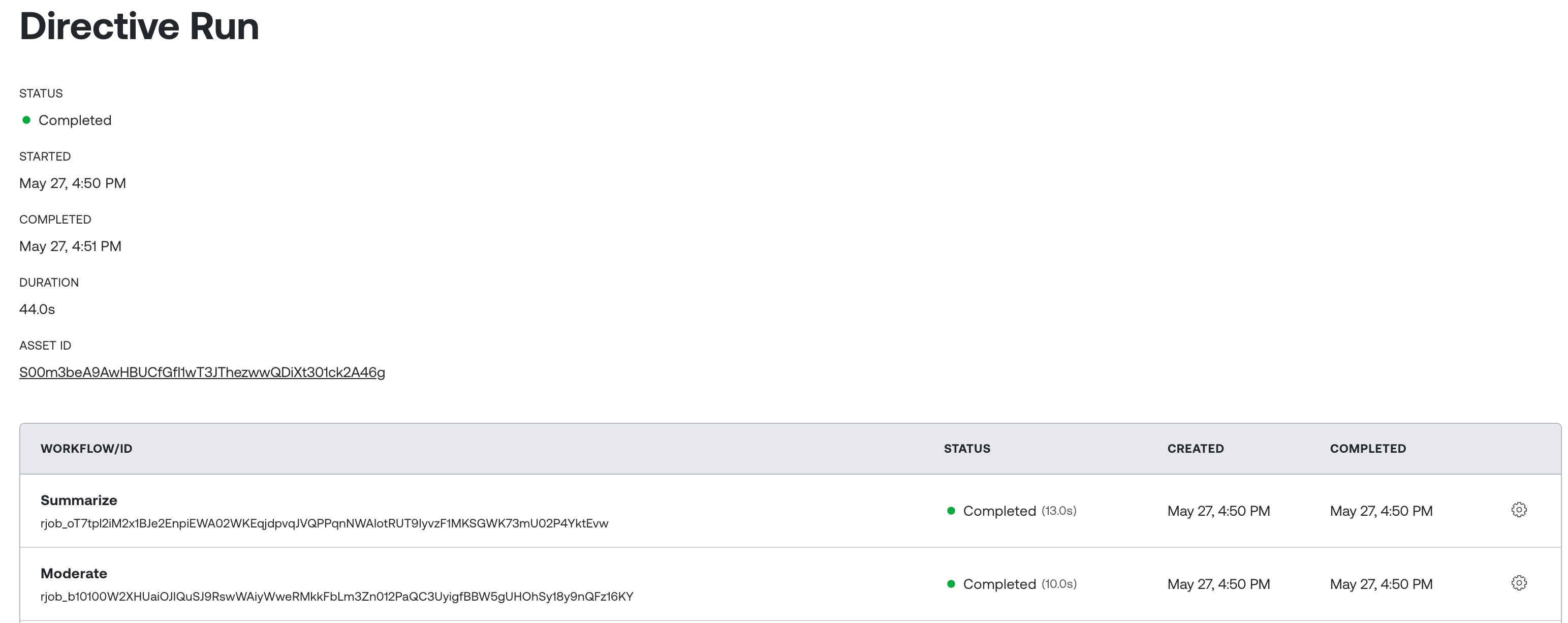
The individual workflow jobs a Directive triggers sit alongside the ones you run by hand, under Robots → Jobs or on the asset details page.
Managing Directives
Retrieve a Directive:
curl https://api.mux.com/robots/v0/directives/YOUR_DIRECTIVE_ID \
  -u ${MUX_TOKEN_ID}:${MUX_TOKEN_SECRET}
List Directives in the current environment, newest first. Paginate with limit (default 25, max 100) and page (default 1):
curl "https://api.mux.com/robots/v0/directives?limit=25&page=1" \
  -u ${MUX_TOKEN_ID}:${MUX_TOKEN_SECRET}
List runs for a Directive, newest first, within the 30-day retention window:
curl https://api.mux.com/robots/v0/directives/YOUR_DIRECTIVE_ID/runs \
  -u ${MUX_TOKEN_ID}:${MUX_TOKEN_SECRET}
Delete a Directive (soft-delete; the row stops appearing in GETs and can't start new runs, but any in-flight runs continue to completion):
curl -X DELETE https://api.mux.com/robots/v0/directives/YOUR_DIRECTIVE_ID \
  -u ${MUX_TOKEN_ID}:${MUX_TOKEN_SECRET}
Frequently asked questions
Who can use Directives?
Directives are available to all Mux Video customers, including accounts on the free plan, with Mux Robots enabled.
How much do Directives cost?
Directives themselves are free. You only pay for the workflow runs they trigger, at the same per-workflow rates as one-off Robots jobs. See Mux Robots pricing for the numbers.
What happens if a workflow errors partway through a run?
Other workflows continue if they don't depend on the failed binding. Anything transitively downstream of the failure is marked failed with a diagnostic reason. The run's own top-level status becomes partial if some workflows completed and others errored, or errored if none succeeded. Either terminal state fires the corresponding webhook.