Integrate with Strapi
The Mux Video Uploader plugin connects Strapi to Mux. Use it when your editors upload videos from the Strapi interface and attach them to your collection types.

The Mux Video Uploader plugin allows editors to upload content directly to Mux from within the Strapi interface, then associate those videos with their custom collection types. Version 3.2 brings Mux Robots AI workflows into the plugin's video details.
Requirements
- A working installation of Strapi that is publicly accessible through a hostname
- An Access Token and Secret Key which is provisioned within Mux Dashboard
- Configure a Webhooks listener within Mux Dashboard so that Strapi can be informed of upload progress.
- An access token that includes Robots (
robots:*), if you plan to use Mux Robots
1. Install the Mux Video Uploader plugin
With your existing Strapi installation, run the following command in the root of your Strapi project to install the plugin. Be sure to restart Strapi for the plugin to take effect.
Version notice
Use the latest version of the Mux Video Uploader plugin with Strapi v5. For Strapi v4, use version 2.8.4 of this plugin. For Strapi v3, use version 2.0.0 of this plugin.
Install instructions for Strapi v5
Run this command in your project folder if you are using NPM:
npm i strapi-plugin-mux-video-uploader@latestOr this command if you are using yarn with your project:
yarn add strapi-plugin-mux-video-uploader@latestInstall instructions for Strapi v4
Run this command in your project folder if you are using NPM:
npm i strapi-plugin-mux-video-uploader@2.8.4Or this command if you are using yarn with your project:
yarn add strapi-plugin-mux-video-uploader@2.8.4Install instructions for Strapi v3
Run this command in your project folder if you are using NPM:
npm i strapi-plugin-mux-video-uploader@2.0.0Or this command if you are using yarn with your project:
yarn add strapi-plugin-mux-video-uploader@2.0.02. Create access token in Mux
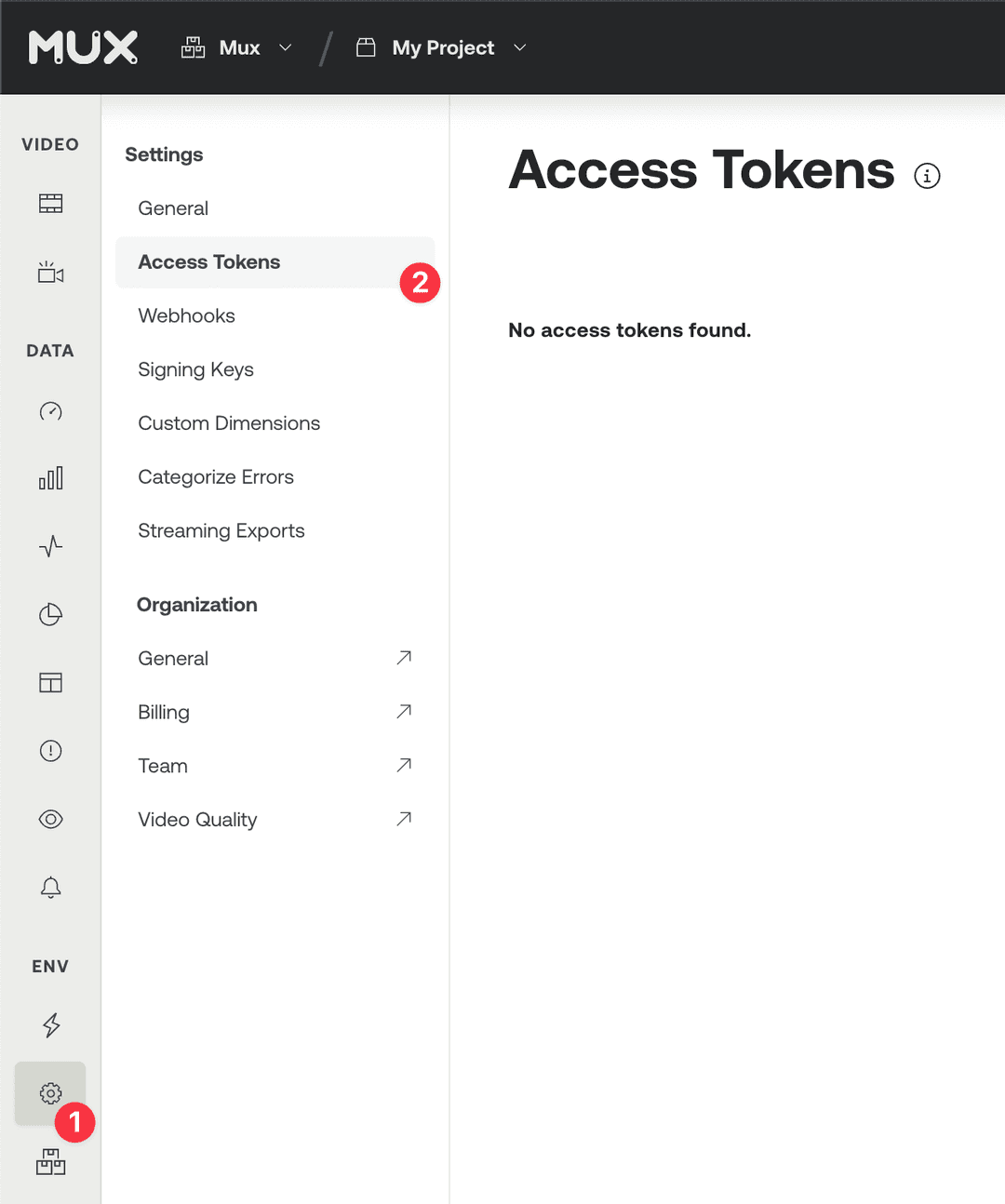
Generate a new Access Token by going to the Access Token settings of your Mux account dashboard.
The access token should have Mux Video Read and Write permissions.
Add the Robots permission (robots:*) now if you plan to use Mux Robots. Mux tokens keep the permissions they were created with, so adding it later means generating a replacement token.
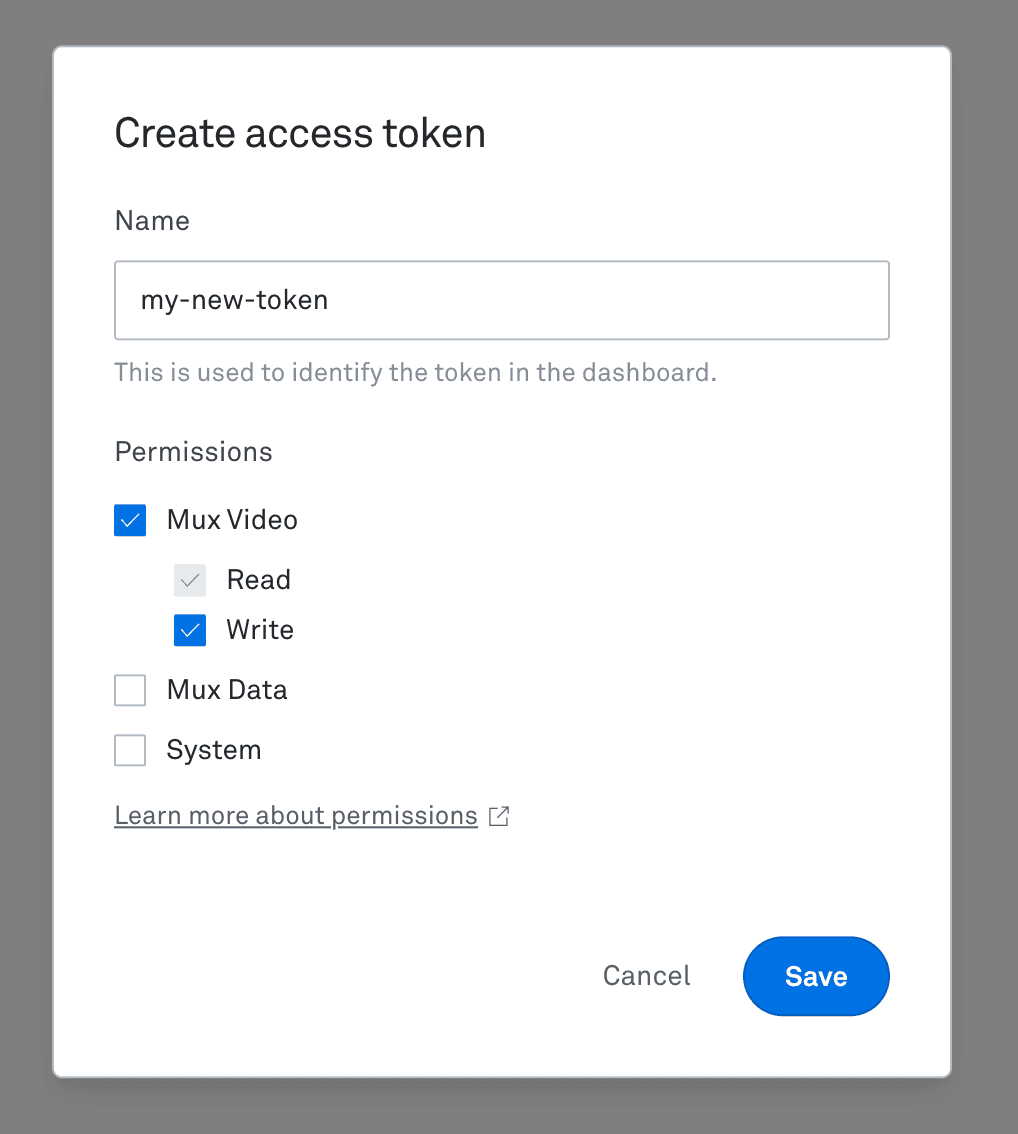
After clicking the "Generate Token" button, save the "Access Token ID" and "Secret Key" to be used later.
3. Configure Webhook listener
Part of the upload process includes Mux updating Strapi with the completion of the upload and processing. In order for Mux to make this communication, a Webhook needs to be established so that events are sent to your Strapi installation.
Create a new Webhook configuration in Mux Dashboard. There will be a space to add a "URL to notify". This value should be formatted based on your Strapi's hostname
{YOUR_STRAPI_DOMAIN_HERE}/mux-video-uploader/webhook-handlerAfter saving, copy the "Signing Secret" which will be used later.
From version 3.2, the plugin verifies each webhook with this secret and answers with a 401 when it doesn't match, which leaves new uploads stuck in "Preparing". The webhook is also how Mux Robots results reach Strapi.
4. Setup configuration in Strapi
Version 3.0 moved the plugin's settings out of the admin and into Strapi's file-based config. Put the values from the previous steps in config/plugins.ts (or config/plugins.js) and restart Strapi:
// config/plugins.ts
export default ({ env }) => ({
  'mux-video-uploader': {
    enabled: true,
    config: {
      accessTokenId: env('ACCESS_TOKEN_ID'),
      secretKey: env('ACCESS_TOKEN_SECRET'),
      webhookSigningSecret: env('WEBHOOK_SIGNING_SECRET'),
      playbackSigningId: env('SIGNING_KEY_ID'),
      playbackSigningSecret: env('SIGNING_KEY_PRIVATE_KEY'),
      defaultDirectiveIds: env.array('MUX_DEFAULT_DIRECTIVE_IDS', []),
    },
  },
});
Only signed playback needs playbackSigningId and playbackSigningSecret, and defaultDirectiveIds can stay empty unless you attach directives to uploads.
5. Upload video
Use the Mux Video Uploader page that is now available in Strapi's menu to upload either with a remote URL or directly using a local video file.
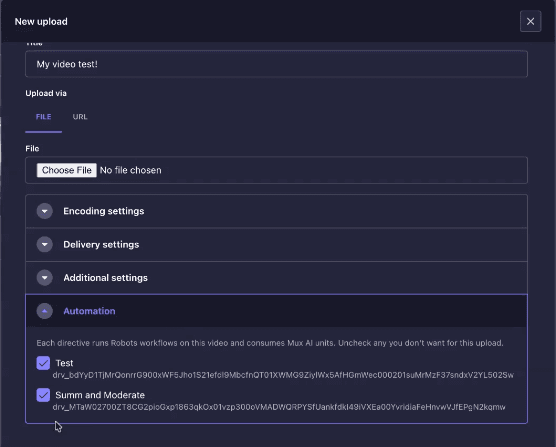
The upload form also has an Automation section listing the directives from defaultDirectiveIds that this upload will carry.
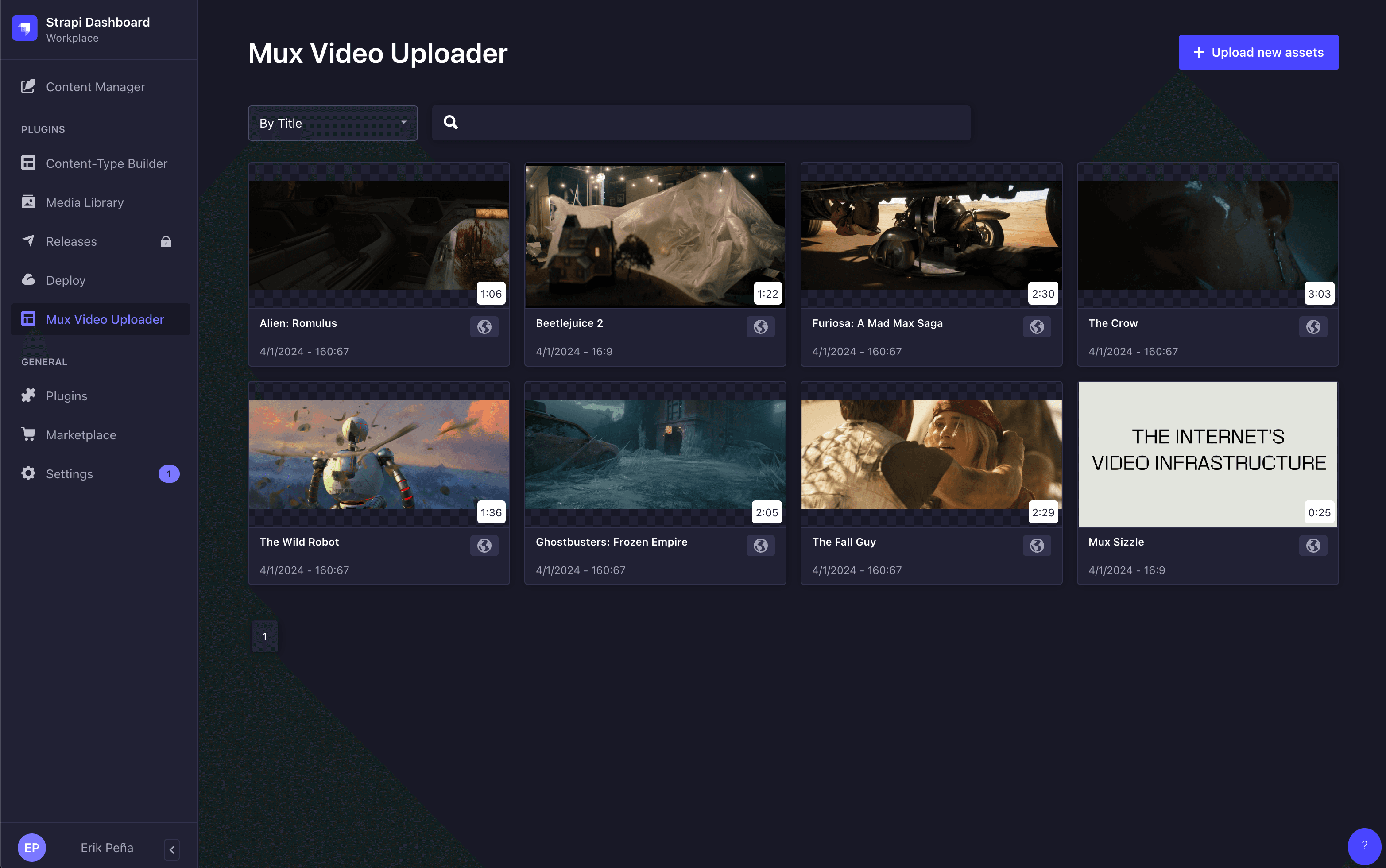
From here, relationships of Mux assets can be modeled to custom collection types within Strapi to tie metadata with playable content.
Congratulations!
You now have the ability to upload content to Mux through Strapi CMS!
At this point, querying Strapi using REST or GraphQL will give you access to the playback_id information. This playback_id can be used by your client applications to stream content or retrieve thumbnails.
6. Explore advanced options
Signed tokens
Warning! Requires generating JWT on your server
Enabling signed URLs in Strapi will require you to generate your own signing tokens on your application server. This involves creating a signing key and using that to generate JSON web tokens when you want to access your videos and thumbnails outside of Strapi.
By default, all assets uploaded to Mux through Strapi will be created with a playback policy of "public". This means that your videos and thumbnails are accessible with https://stream.mux.com/{PLAYBACK_ID}.m3u8 and https://image.mux.com/{PLAYBACK_ID}/thumbnail.jpg.
If you want more control over delivery of the playback and thumbnail access, add a signing key to the plugin configuration with playbackSigningId and playbackSigningSecret (see step 4).
When you enable this feature, the following things will happen:
- The Mux Plugin in Strapi will save the signing keys that you've generated and be available immediately.
- Any Assets that get created with the Signed Playback URL setting enabled will be created with
playback_policies: ["signed"](instead of["public"]). - The signing key from Step 1 will be used by the Mux Plugin to preview content inside the Strapi UI.
- When you access your content in your own application, use the
MuxAsset.signedproperty to determine if the asset is signed by either atrueorfalsevalue.
{
  "id": 9,
  "upload_id": null,
  "asset_id": "H9H01yni83yRLuu6cKaf8jQI8XW01SPp5XI7WrGsD37n00",
  "playback_id": "aAqXNee00zlfzR2Rsw01NmGBvxSg1Ocs3g008YChvtG6aM",
  "signed": true,
  "isReady": true,
  "duration": 25.492133,
  "aspect_ratio": "16:9",
  "createdAt": "2024-04-01T23:48:19.760Z",
  "updatedAt": "2024-04-01T23:48:21.605Z"
}- You should use the signed
playback_idto create URLs for playback and for thumbnail generation.
- Playback
https://stream.mux.com/{SIGNED_PLAYBACK_ID}.m3u8?token={TOKEN} - Thumbnails
https://image.mux.com/{SIGNED_PLAYBACK_ID}/thumbnail.jpg?token={TOKEN}
- The
TOKENparameter for the above URLs is something you create on your server according to Step 2 in Secure video playback
Note that in the Strapi UI when an asset is using a signed URL you will see a lock icon on the Asset list.
Encoding Tiers
When uploading a new video, you can select what Encoding Tier used when preparing the Asset. Possible selections are Smart and Baseline. When choosing Smart additional options are made available for maximum stream resolutions (1080p, 2K or 4K).
More details can be found in our Use Encoding Tiers section.
Static Renditions
When using the Smart Encoding Tier, an option to enable downloadable MP4s will be available. This option will create Static Renditions for the Asset and will make MP4 files available for download to client devices using a formatted URL.
Captions/Subtitles
With Mux's auto-generated captions, editors can easily add captions to videos being uploaded from Strapi. When using the "Auto-generated" option, Mux will generate captions automatically while it prepares the Asset. More details can be found in the Add auto-generated captions to your videos and use transcripts section of our documentation.
If you choose to upload a "Custom" captions file (supported formats are .vtt and .srt), your file will be uploaded to your instance of Strapi and Mux will pull it via a public URL from your Strapi instance. Take a look at our Add subtitles/captions to videos for more details.
AI workflows with Mux Robots
You can leverage Mux Robots from the Strapi admin and send a video through any of the Robots AI workflows.
Before your first run
- Check that your Mux account has Robots turned on, and use an access token that includes Robots (
robots:*) foraccessTokenIdandsecretKey(step 2). - Set
webhookSigningSecretand keep the webhook reachable, since Robots results arrive through it. - Give Run Robots to the roles that should start runs, under Settings > Administration Panel > Roles > Plugins > Mux video uploader. Until you do, only Super Admin has it.
- Optionally, attach directives to new uploads with
defaultDirectiveIds(see Directives on upload).
Run a workflow from the Robots tab
Every video in the Mux Video Uploader has a Robots tab. Choose a workflow or a directive there and start it, and the job joins the tab's list, where you can stop it while it runs or read its output and the Mux AI units it used once it's done. The list also picks up jobs created from your dashboard or with the API.
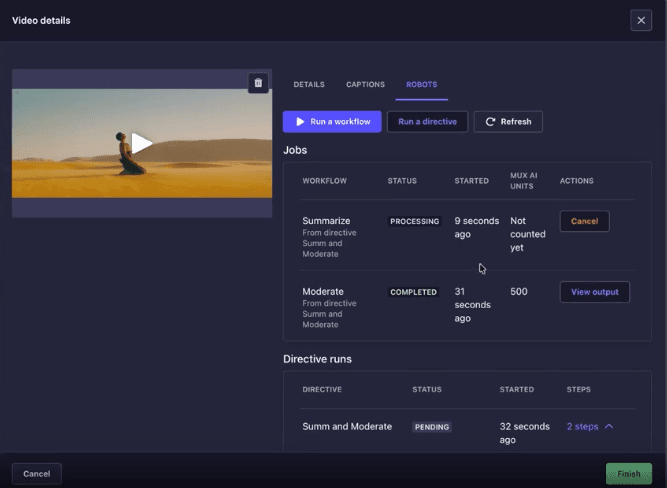
Track-producing workflows (chapters, dubs, captions and translations) store their results on the Mux asset, so your own player gets them as well. If chapters don't appear in the admin preview, follow the plugin README's chapters FAQ.
Summaries in the Details tab and the Content Manager
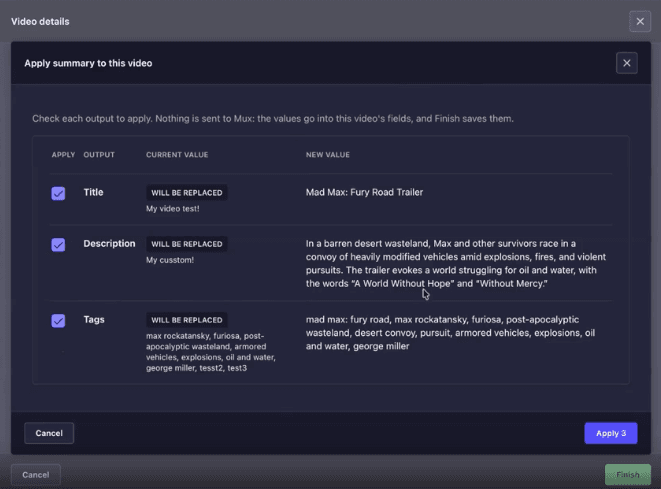
Mux Assets now carry description and tags. A finished Summarize job fills them when they're empty and leaves the title alone. To reuse a summary, use Apply summary in the video's Details tab to load it into the form, or open an entry that links the video and use the Mux Robots panel in the Content Manager to copy it into the entry's fields. Both write unsaved changes, so you review them before saving. The panel only finds top-level relations to Mux Asset, so a video linked inside a component or dynamic zone won't show up there.
Directives on upload
Directives are built in your Mux dashboard. Add their IDs to defaultDirectiveIds, or to MUX_DEFAULT_DIRECTIVE_IDS as a comma-separated list. The upload form's Automation section shows them checked on each new upload, and only roles with Run Robots can clear one. IDs that Mux doesn't have are flagged and skipped.
Good to know
- After the tab's first look at Mux, updates come from your webhook, and the tab re-reads Strapi every 4 seconds while a job is running.
- Each click sends one request to Mux. If Mux doesn't answer, the run waits as Not confirmed instead of being sent again.
- Behind a load balancer, two clicks that reach different Strapi instances can each start a billed run, because the duplicate check works within one process.
- Any role with
findorfindOneon Mux Asset can readdescription,tagsandrobots_outputs, moderation scores included, through the content API. The plugin README lists every stored field.
Set up playback
Preview your video
Integrate Mux Data
Release notes
Latest release
v3.2.0
- A Robots tab in each video's details for starting Mux Robots jobs and directive runs
- Mux Assets gain
descriptionandtags, filled from summaries and editable in the Details tab - Apply summary copies a summary into an entry from the Content Manager
- New Run Robots permission, held only by Super Admin until you grant it
defaultDirectiveIdsattaches directives to each upload, shown in the form's Automation section- Webhooks are verified with
webhookSigningSecretand can arrive in any order - The plugin requires Mux Player 3.14, which the admin preview uses once your app installs a single version (see the chapters FAQ)
- Fixed custom caption file URLs, and saving a video's details no longer deletes caption tracks the form didn't show
Upgrading from 3.1 or earlier
Set webhookSigningSecret before you deploy 3.2, or webhooks fail with a 401 and uploads stay in "Preparing". Scripts that call the plugin's admin API now need a role with the plugin's permissions, and failed calls to Mux aren't retried. Strapi adds the new tables and columns on start, with no migration. Full steps are in the plugin README.